

NAPFA for Singapore schools
NAPFA scores, run timing and reports. Together.
Record station scores, automate 1.6km and 2.4km timing with RFID, and share useful results with students and parents.
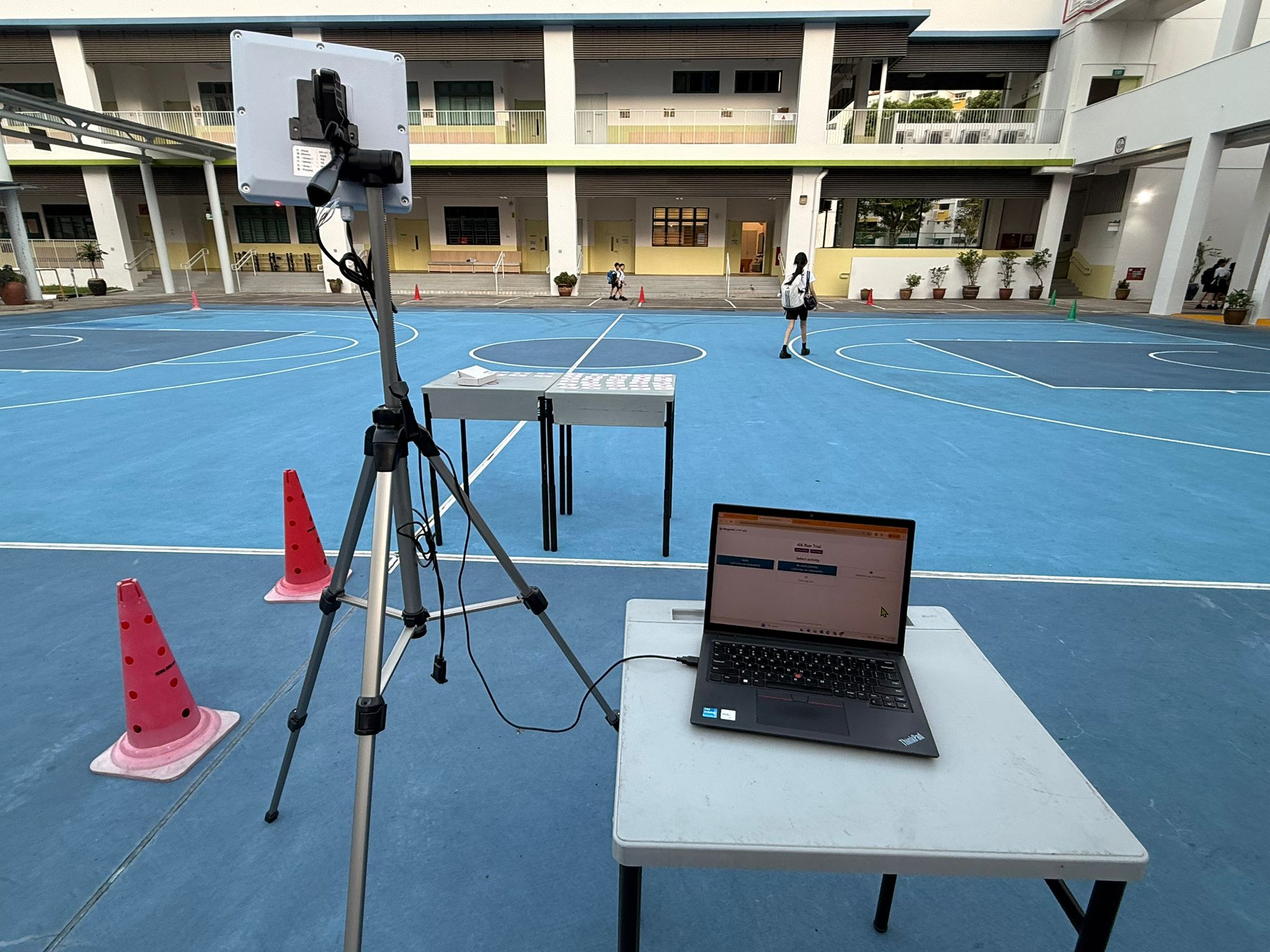
RFID run timing
From card assignment to completed run results.
Readers record each student’s pass so teachers can follow lap progress and completed timing in Mangostin.
The photographs show a school RFID setup. The app screenshots use fictional students and demo times.
Step 1: Collect assigned cards
Mangostin automatically assigns RFID cards to students. Each student collects their assigned card before the run.
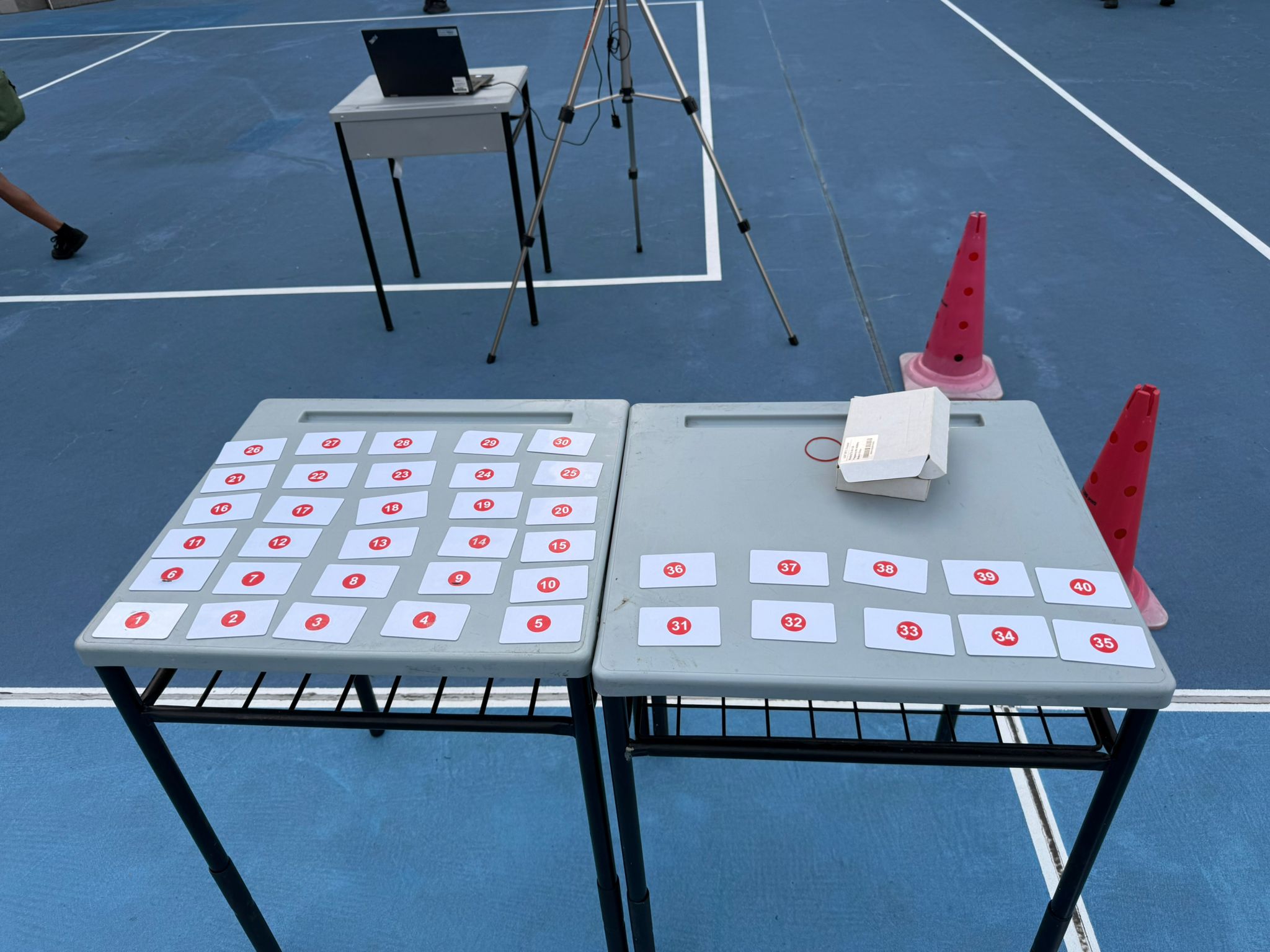
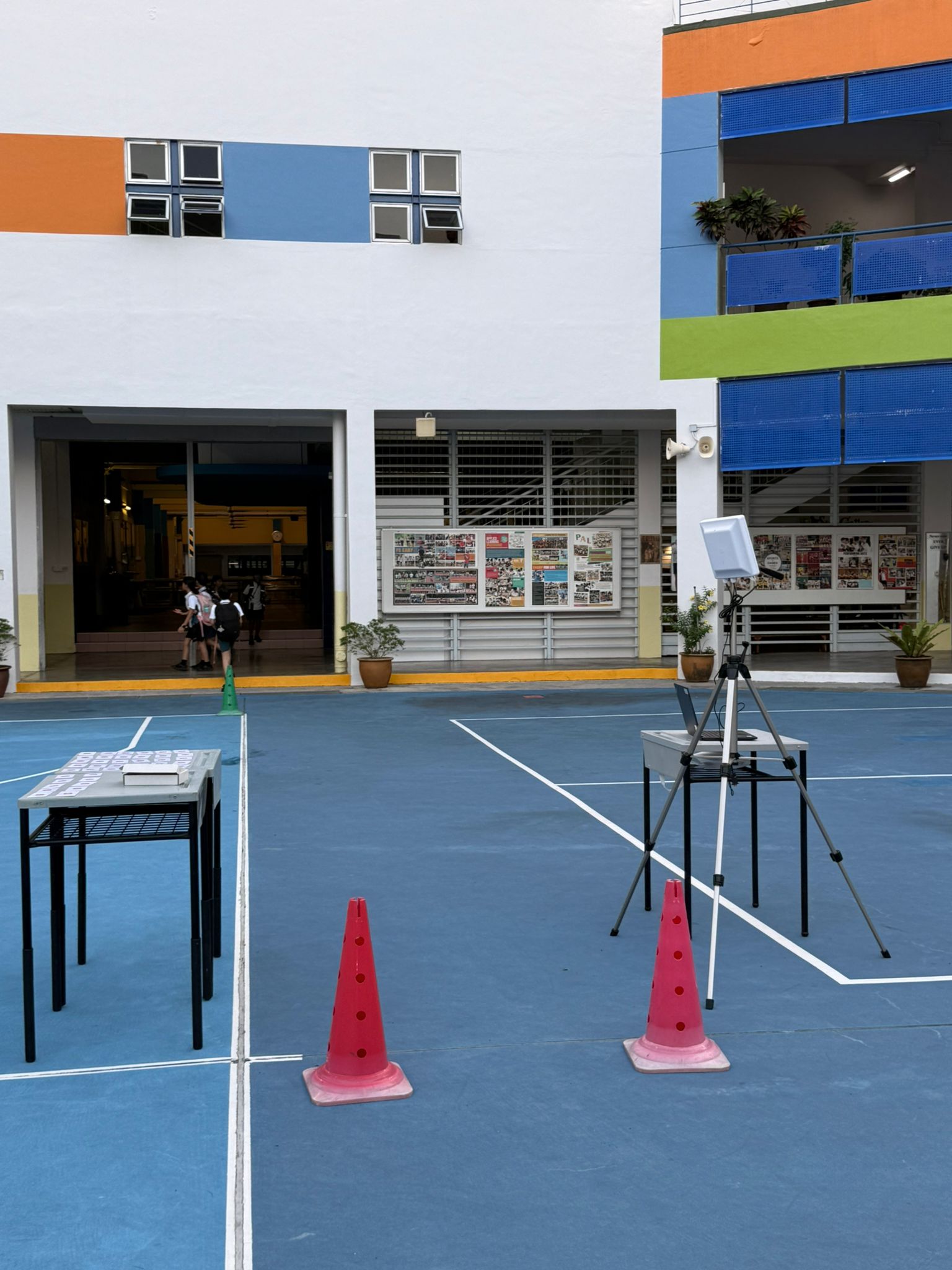
Steps 2–3: Position readers and pass the timing point
Place RFID readers at the timing points on your running route. Students carry their cards as they pass each reader.
Step 4: Record laps and timing
Mangostin records laps and timing. Voice prompts can announce how many laps are left, the last lap and when a student finishes.
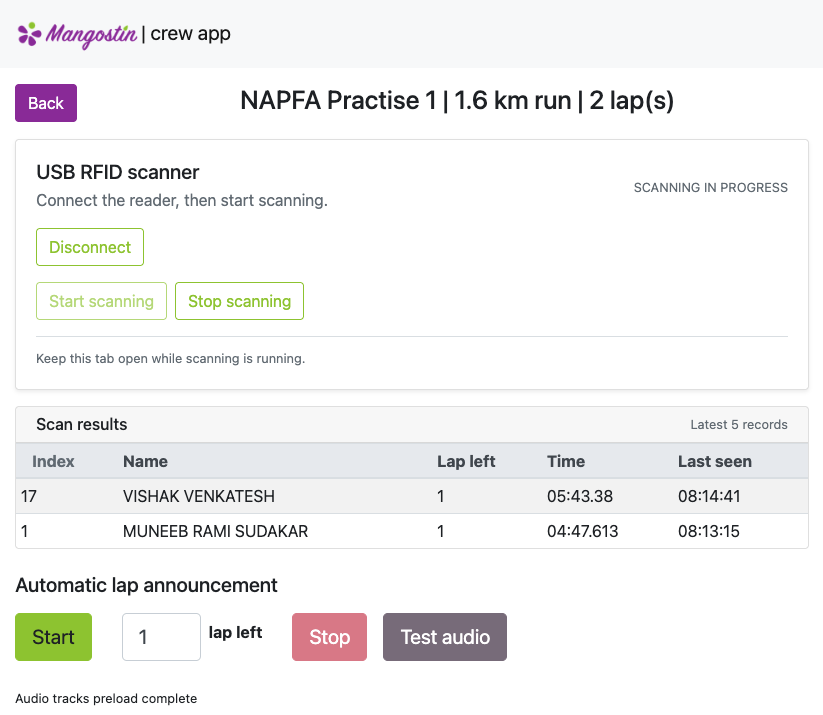
Step 5: Monitor completion
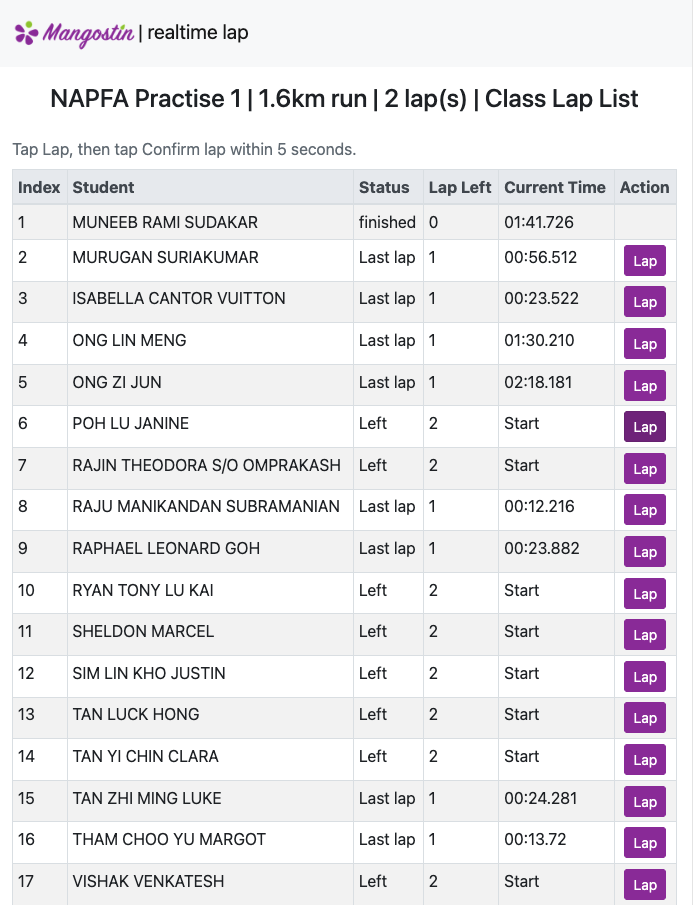
The Class Lap List shows who has finished, how many laps remain and each student’s current time.
Equipment and subscription
RFID timing is included with Mangostin. Schools purchase the readers and cards separately as a one-time equipment cost.
RFID equipment is required for automated run timing. Digital recording at the other NAPFA stations uses the school’s supported phones, tablets or laptops.
What the current product supports
- Bluetooth and USB-connected RFID reader workflows
- Automatic RFID card assignment by class or participant
- Recent scan results, lap status and completed timing
- If the connection briefly drops, Mangostin retries sending pending RFID results.
Station score recording
Record station results in the Crew App.
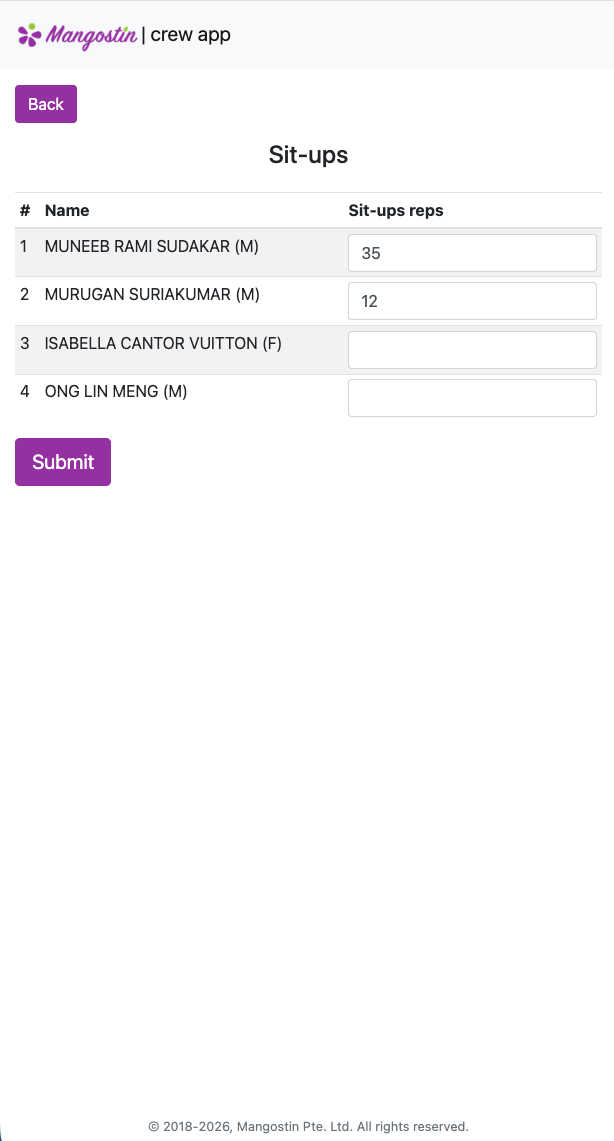
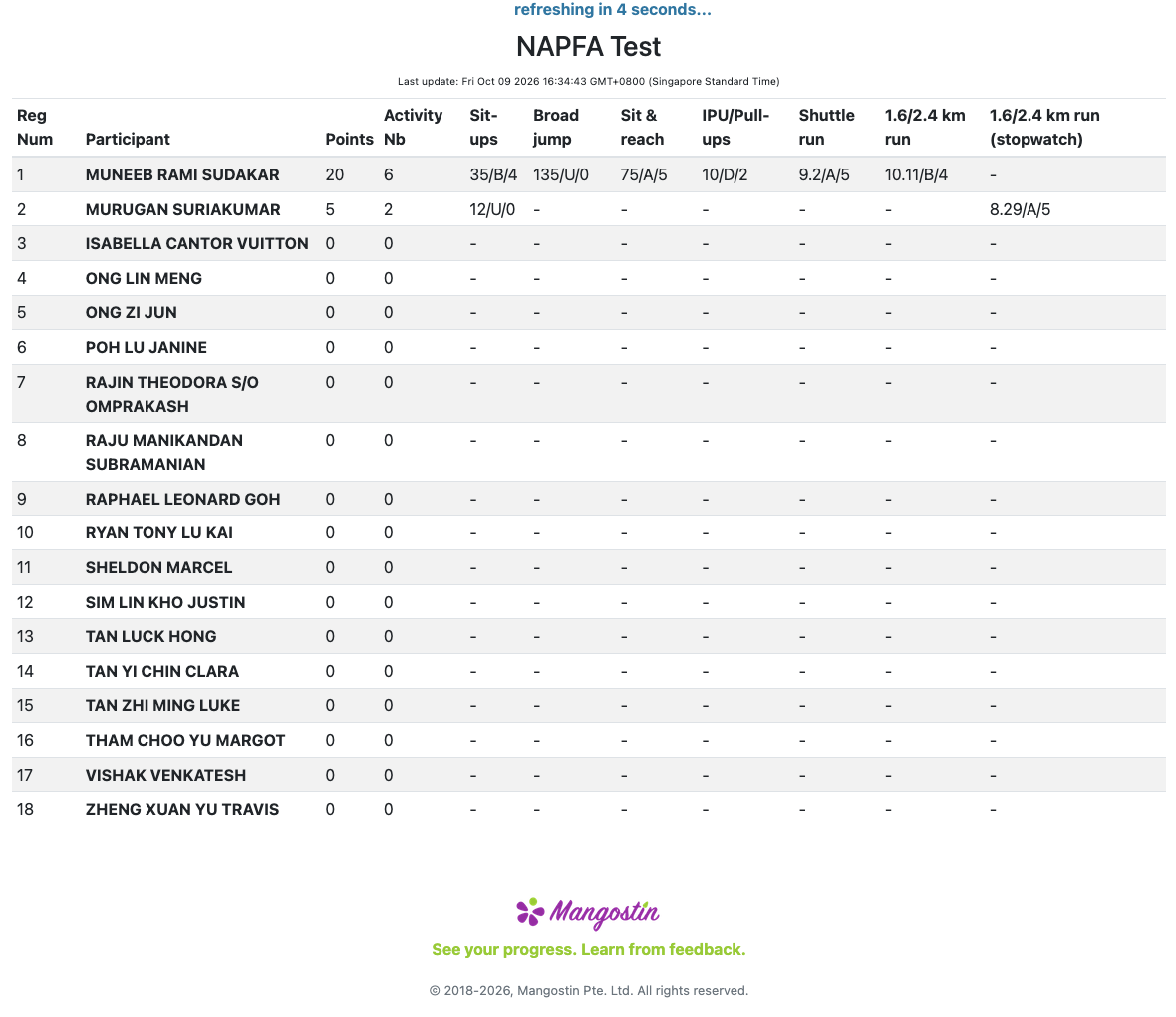
Select a student or station, enter and submit the result, then view the class results to see what has been recorded.
How schools organise the stations
Saint Anthony’s Primary and Ai Tong Primary used different station and staffing arrangements with Mangostin.
Current Crew App screenshots with fictional student names and demo results.
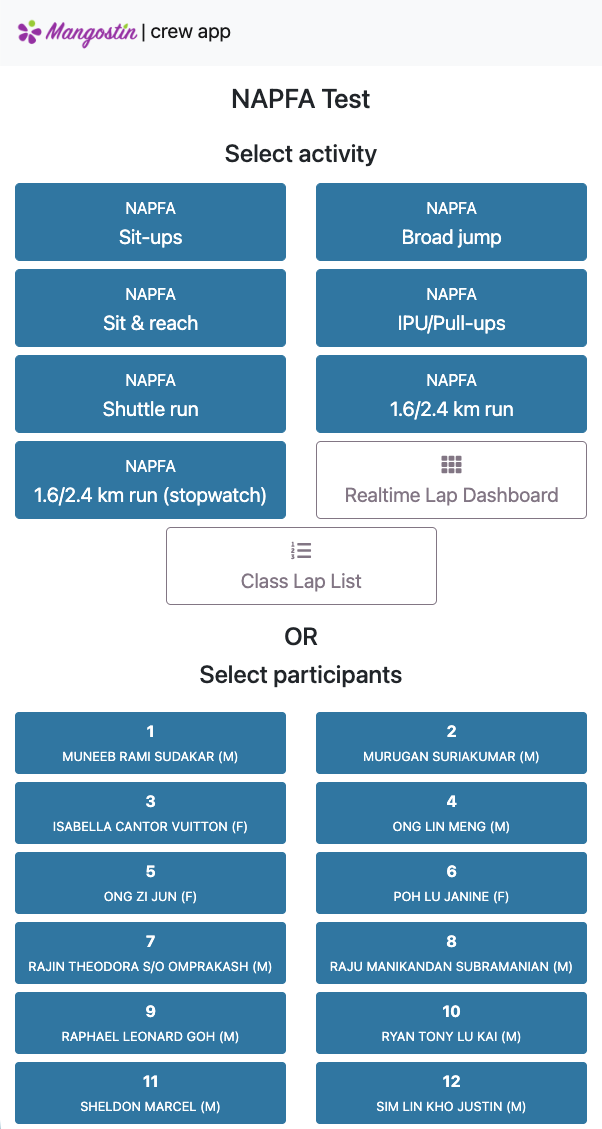
Select a student or station
Enter the results
See the class results
Results for students
Help students understand their NAPFA results.
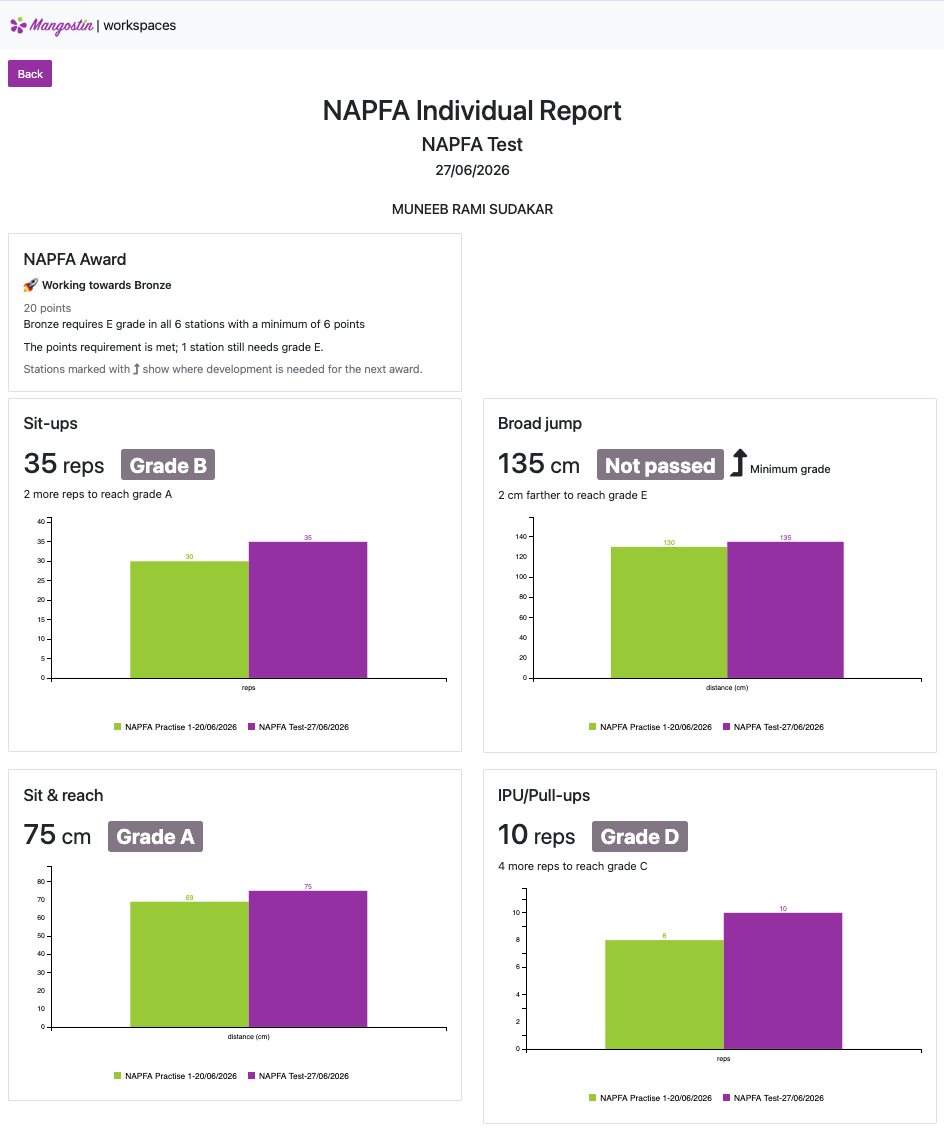
Schools can publish NAPFA results in each student’s online Mangostin portfolio, alongside other PE learning and assessment records.
The portfolio can show the NAPFA outcome, individual station results, and previous results or progress when the school has published that information. Publishing is controlled by the school; results are not automatically shared in every setup.
Demo student portfolio — NAPFA report
Reports for parents
Share clear progress reports with parents.
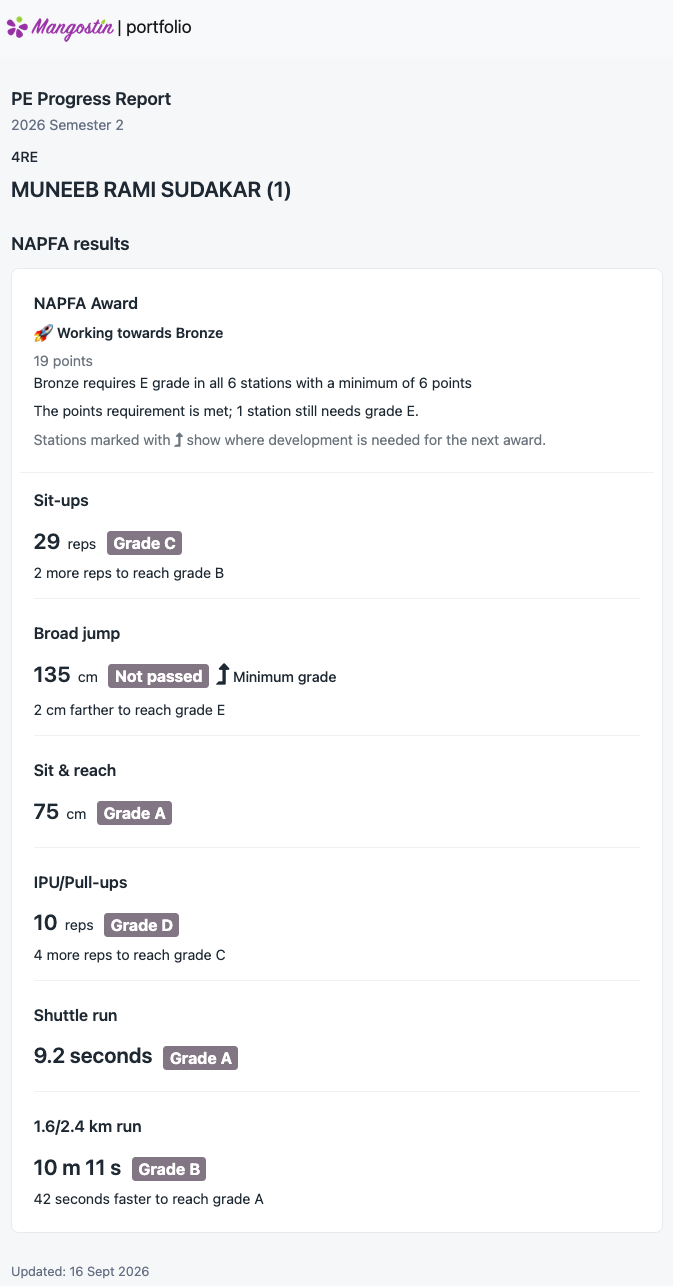
NAPFA information can be included in PE progress reports designed for parents and opened through the school’s sharing process.
These reports support focused communication. They do not give parents unrestricted access to the full student portfolio.
A school workflow in use
Saint Anthony’s Primary shares digital PE progress reports through QR codes placed in students’ report books.
Read the progress-report storyDemo parent report
Practical questions
Plan the setup around your route, devices and sharing process.
These answers reflect the current product. Hardware layout, contingency procedures and connectivity should still be confirmed for each school before test day.
You need RFID cards for the students, an RFID reader and a device running the Crew App. Mangostin has been tested with three reader options:
- USB reader — up to 8 metres. Can read multiple student cards at the same time.
- Bluetooth reader — up to 5 metres. Can read multiple student cards at the same time.
- Shorter-range reader — up to 1.5 metres. Can read a small number of student cards at the same time.
USB readers work with Windows and macOS using a supported browser. Bluetooth readers work with Windows, macOS and Android using a compatible browser.
On an iPhone or iPad, install Bluefy and open the Crew App in Bluefy to connect a Bluetooth reader.
These are maximum ranges, not guaranteed distances for every setup. Check the reader position and how students carry their cards before the test.
RFID timing is included with Mangostin. Schools purchase the readers and cards separately as a one-time equipment cost.
Yes. Schools can record the NAPFA stations digitally without RFID. RFID is required only for automated contactless run timing; other configured timing workflows remain available.
The Crew App runs in a supported web browser on school phones, tablets and laptops. Device and browser compatibility should be checked before the test.
If a teacher sees a student pass but the RFID scan is missed, they can record the lap on the spot in the Crew App: tap the student’s name tile, then tap Lap / Finish. Another option is the Class Lap List: tap Lap, then Confirm lap. Manual recording uses the time of the action; it does not recover the exact time of an earlier missed scan.
The Crew App normally uses a live connection. RFID scans are queued on the device and retried after a temporary connection loss, but the school should confirm coverage, acceptable outage limits and a fallback plan for the route.
Mangostin combines recorded station results with the completed timed-run result and creates a spreadsheet in the NAPFA Cockpit format for the teacher to review and use in the school’s submission process.
Schools can publish NAPFA results to a student portfolio and can include NAPFA information in focused PE progress reports for parents. Access is shared through the school’s chosen process, such as a unique link or QR code.
See the workflow
See how Mangostin could fit your school’s NAPFA setup.
A NAPFA demo can cover:
- Station score recording
- RFID equipment and route setup
- Live run timing
- Completion tracking and reporting
- Student portfolios
- Parent progress reports
Book a NAPFA demo
Tell us which part of your current setup you would like to review.